
Technical Overview
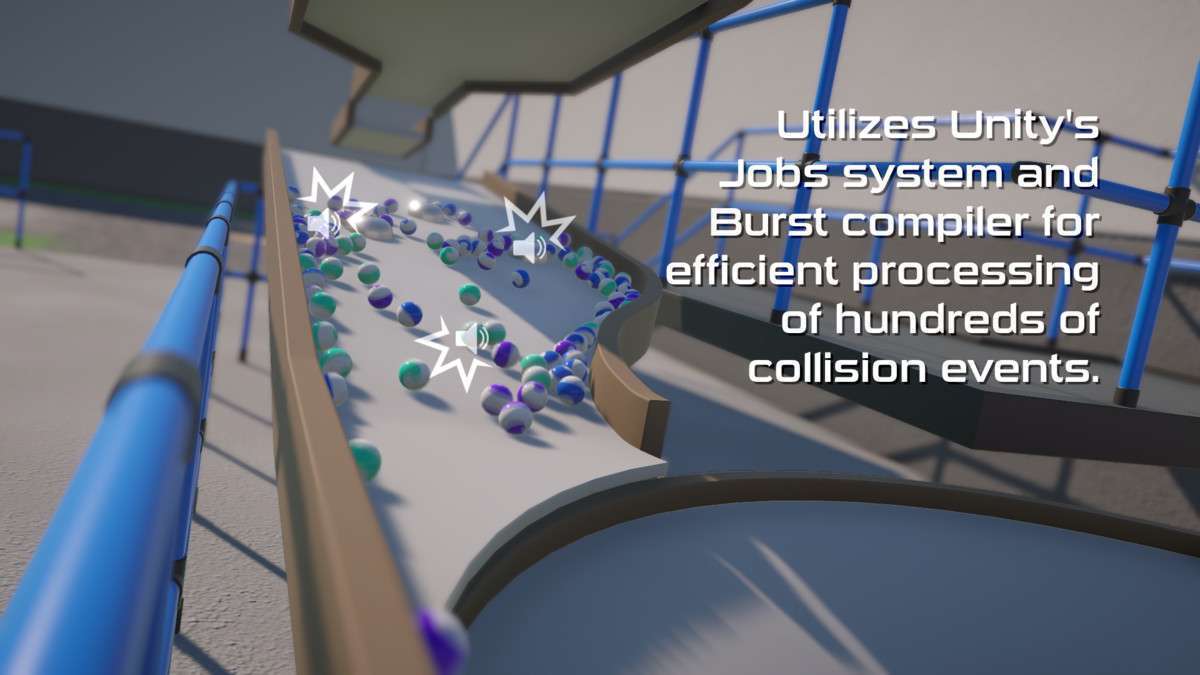
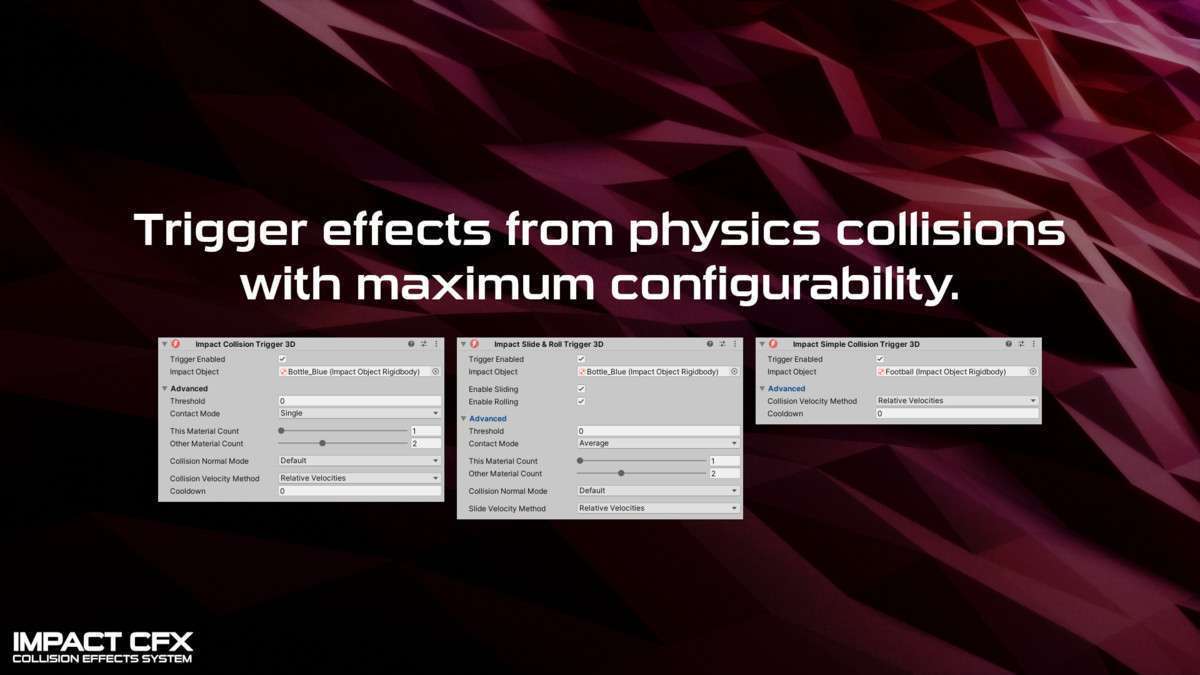
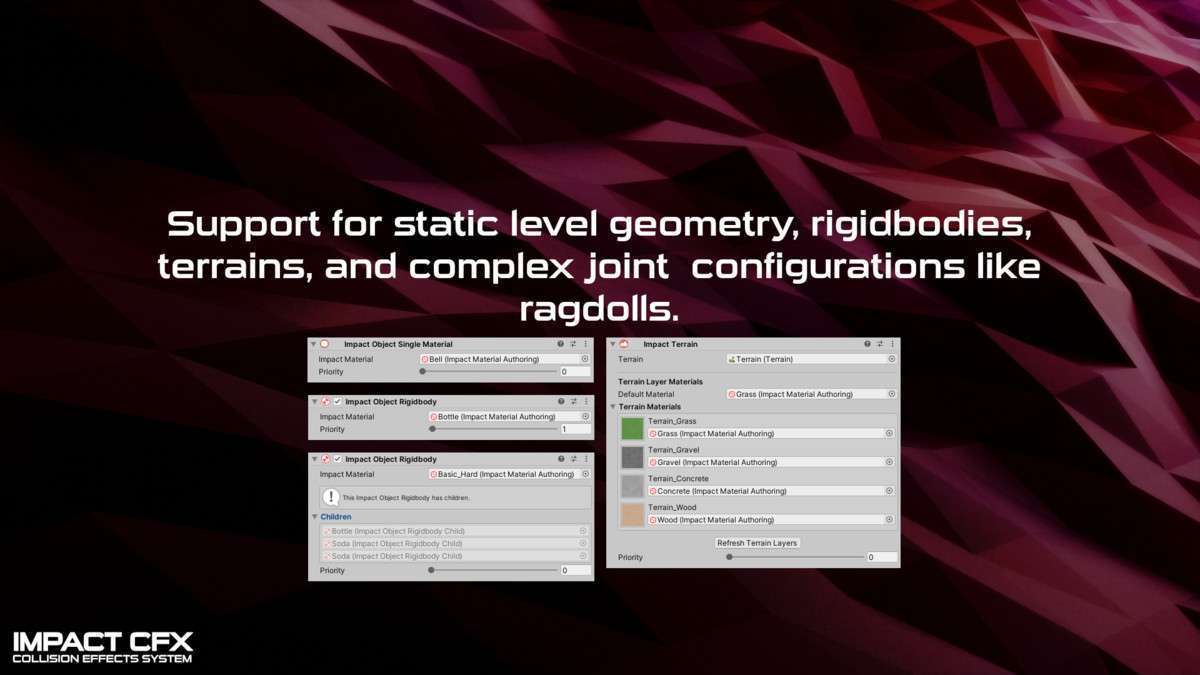
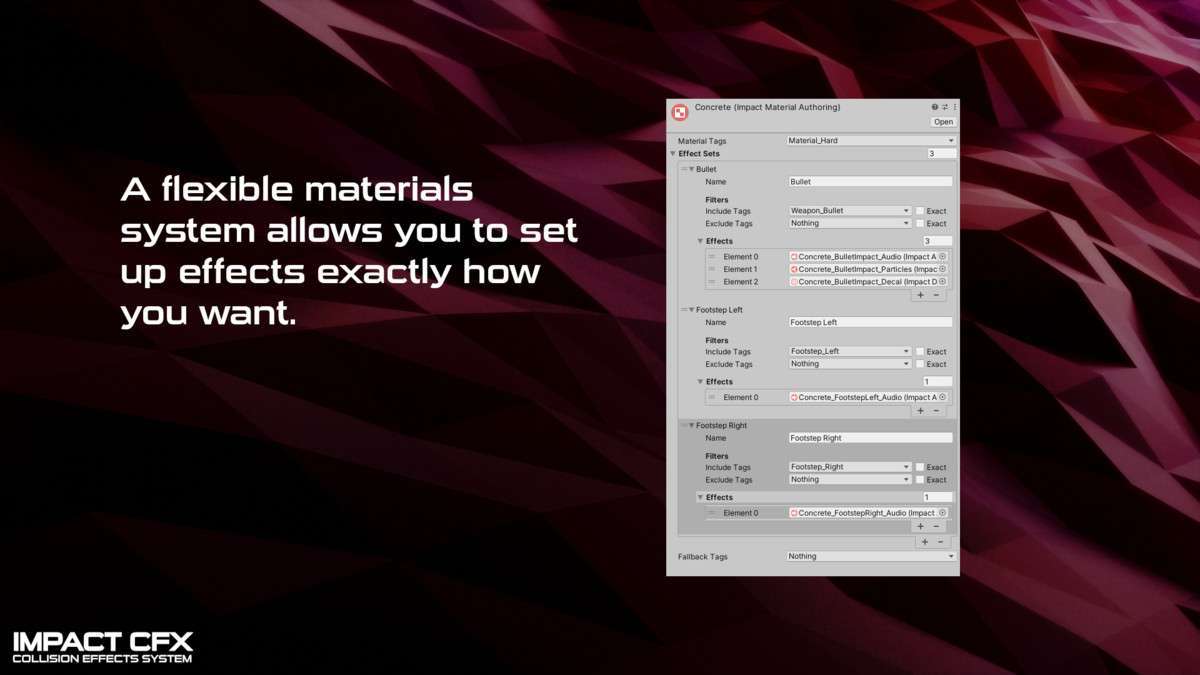
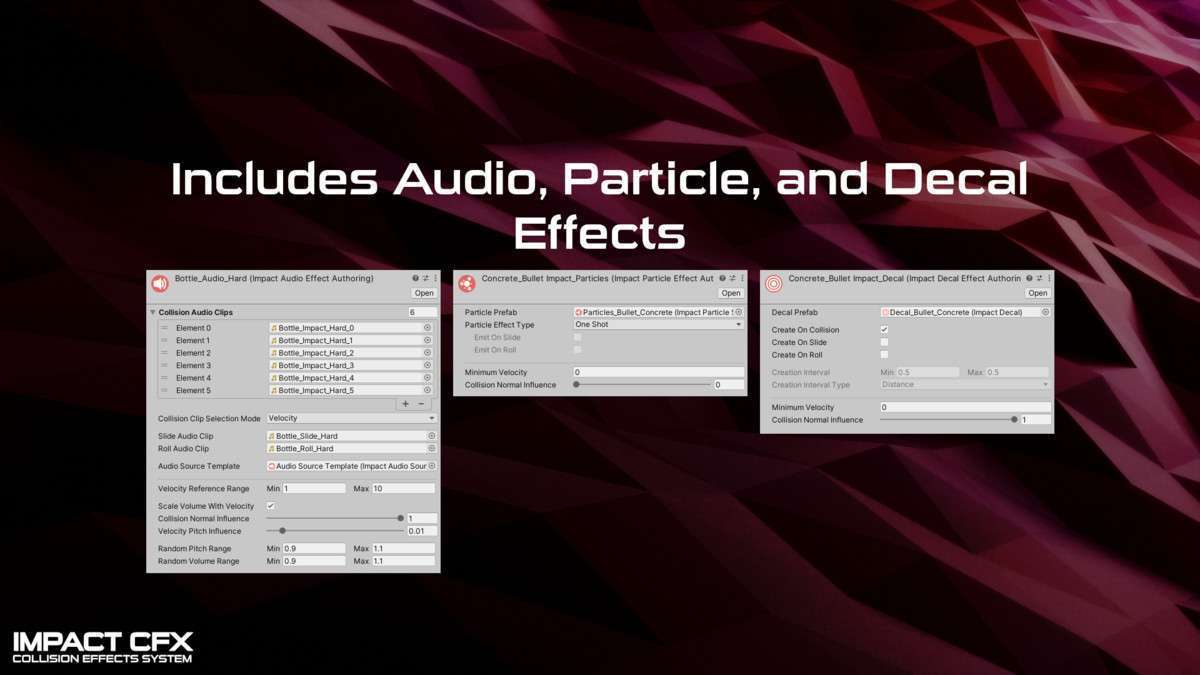
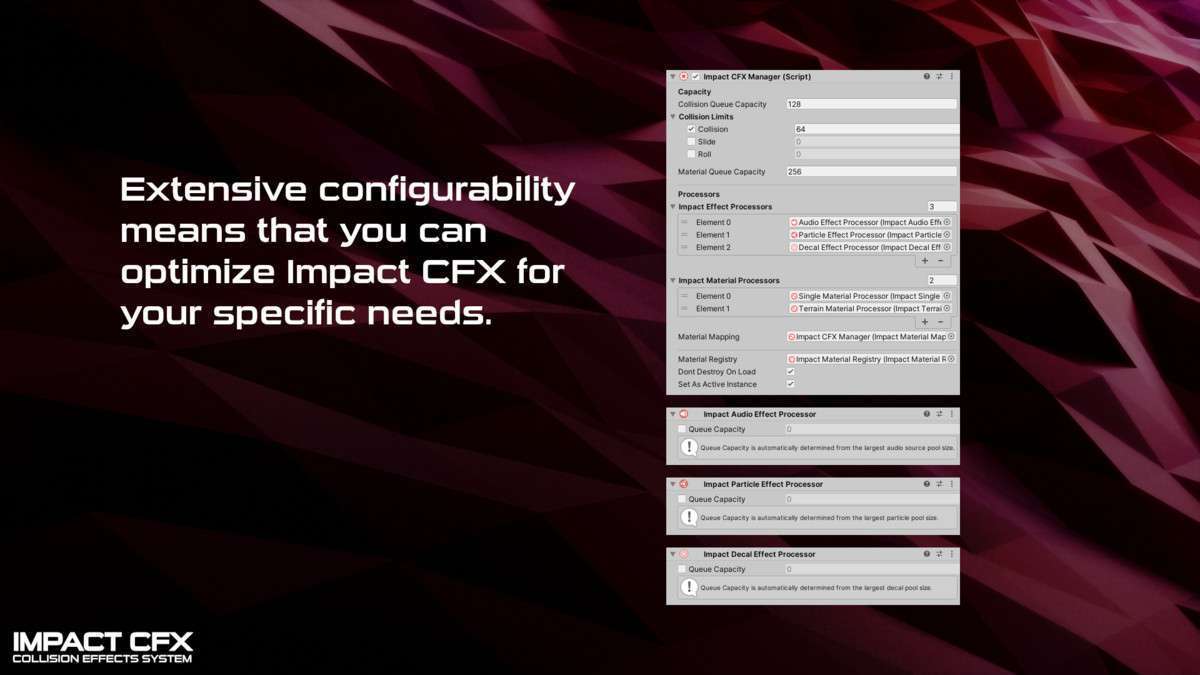
Implementing Impact CFX – Collision Effects System Unity 1.5.4 significantly reduced our draw calls and CPU overhead during high-physics scenes. By leveraging Unity’s Job System and the Burst compiler, it offloads the material-based collision lookups and effect spawning from the main thread. This is a material-driven workflow: instead of tagging every object, you define Impact Materials that dictate how audio, particles, and decals behave when they interact with other materials.
Integration Tips
Before importing, ensure your project has the Burst, Collections, and Mathematics packages installed via the Package Manager. When setting up character footsteps or bullet impacts, you’ll need to use raycasting. A senior tip: cache your Impact Material lookups. While the system is fast, performing a GetMaterial call every frame on a high-rate-of-fire weapon can still create overhead. Use the provided VFX Batch Effect for URP/HDRP to handle large-scale particle emissions efficiently.
Best Use Cases
- Tactical Shooters: The ability to play different audio samples and spawn specific decals (wood splinters vs. concrete dust) based on the material hit is essential for high-fidelity combat. The system handles the velocity-based volume and pitch scaling out of the box.
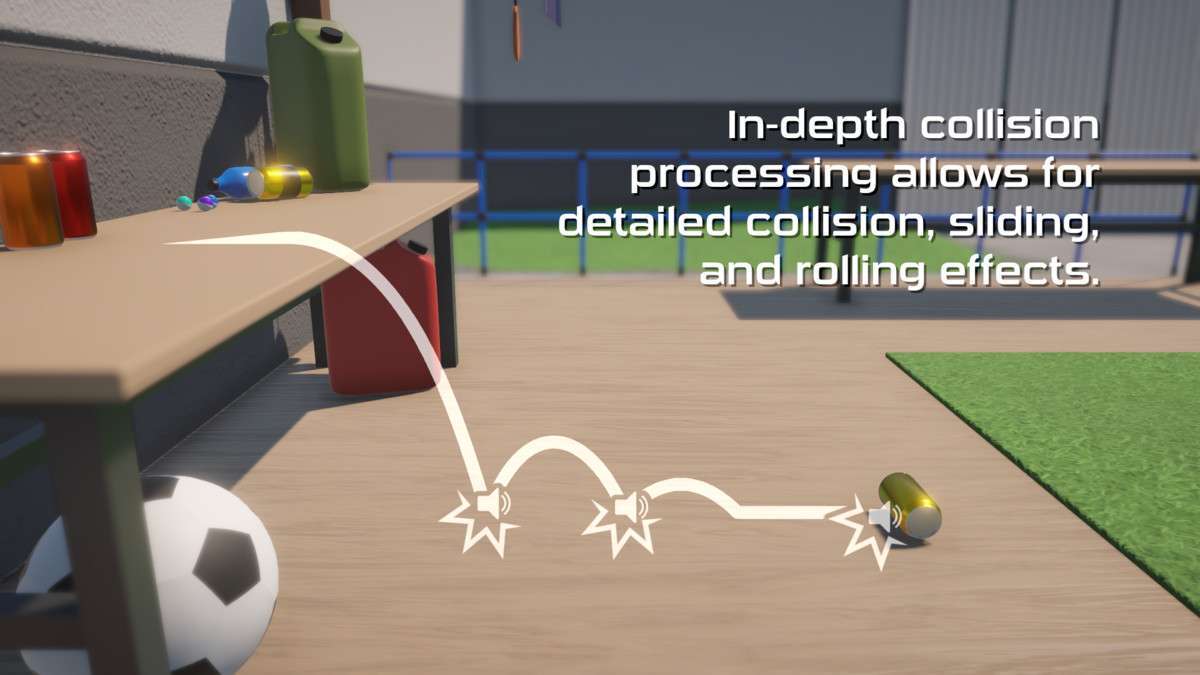
- Vehicle Simulators: For games involving heavy rigidbodies and joints, Impact CFX handles the ‘sliding’ and ‘rolling’ audio loops perfectly, which are traditionally difficult to transition smoothly using standard trigger-based collision scripts.