










High-Fidelity Color Grading for the Built-in Pipeline
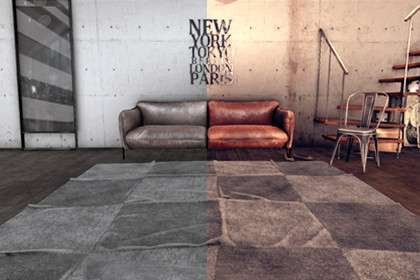
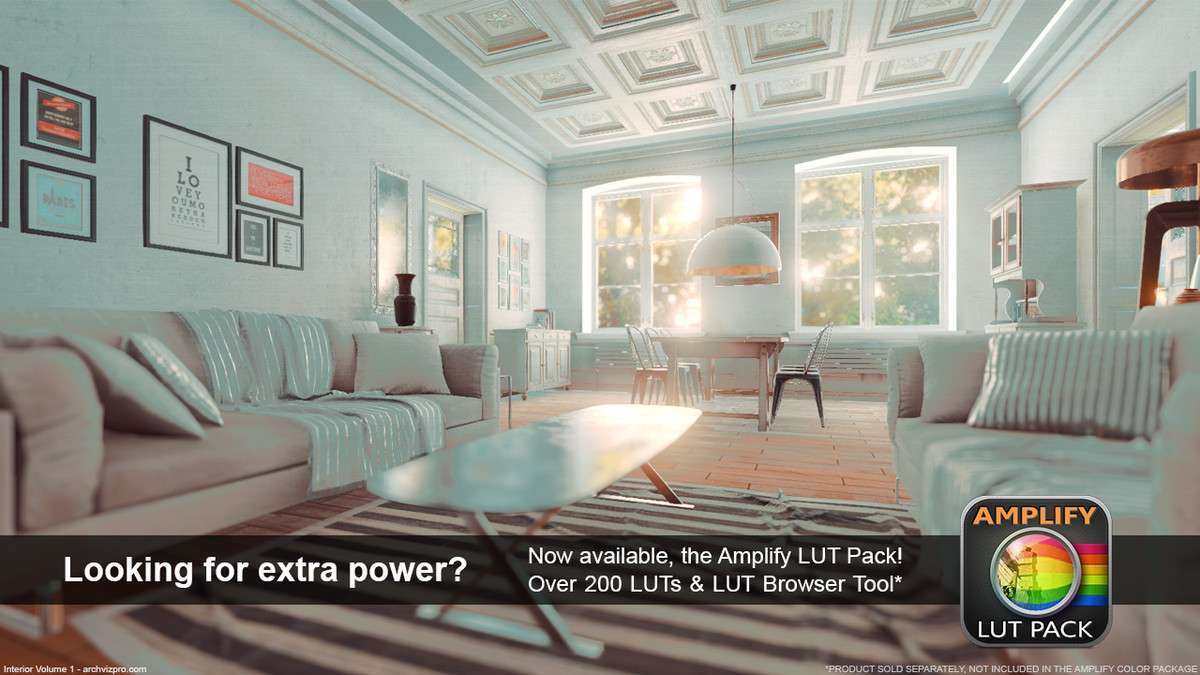
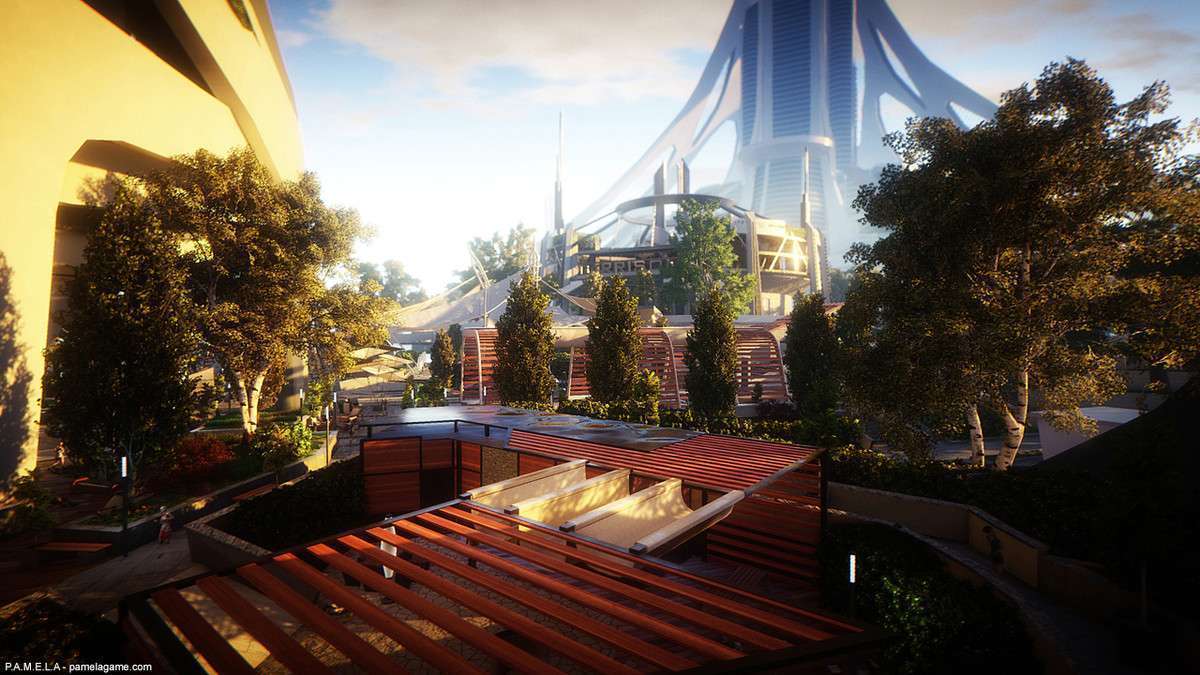
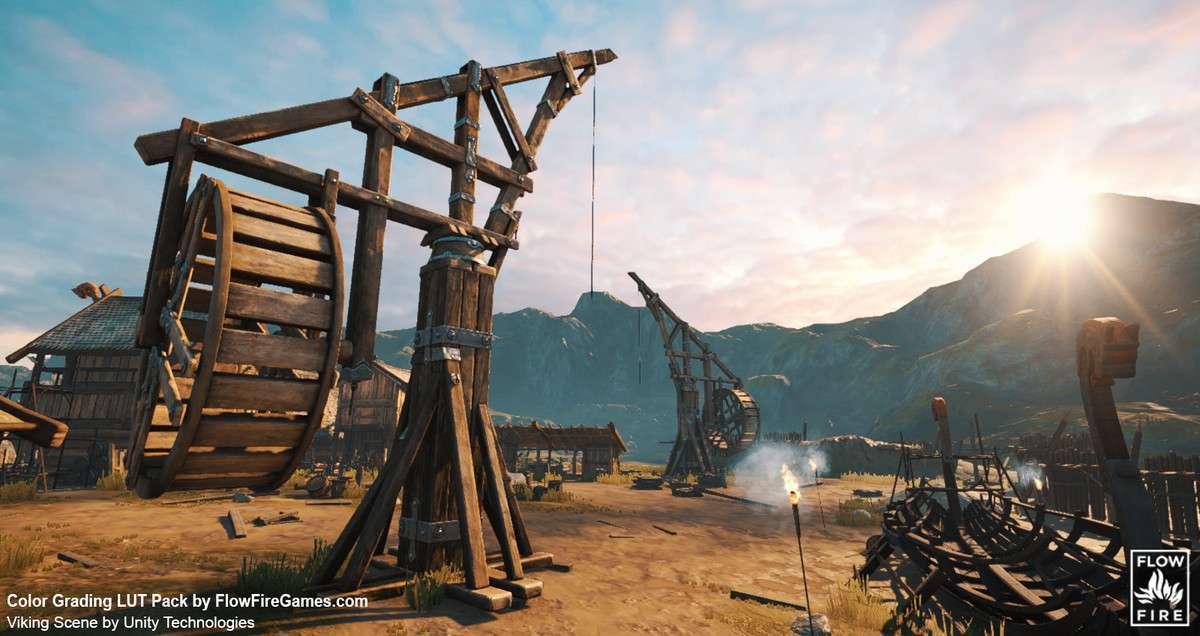
Amplify Color Unity 1.8.1 remains one of the most efficient LUT-based color grading solutions for projects utilizing the Built-in Render Pipeline. Unlike the heavy overhead associated with the Post-Processing Stack (PPS) v2, Amplify Color provides a lightweight alternative that focuses on high-performance LUT (Look-Up Table) blending. As a lead developer, I prioritize this asset when we need industry-grade color correction without the draw call penalties often seen in more complex post-processing frameworks, especially on mobile or VR hardware like the Meta Quest.
Integration Tips
- Render Pipeline Compatibility: It is critical to note that Amplify Color Unity does not support URP or HDRP. If your project is already on a Scriptable Render Pipeline, you should look toward the Amplify Shader Editor or native Volume components instead.
- Photoshop Workflow: To leverage the real-time link, ensure you have the Photoshop connection script enabled in your project settings. This allows you to push color adjustments directly from a PSD to the Unity Game View, bypassing the manual export/import cycle for .cube or .png LUT files.
- Camera Setup: Attach the Amplify Color Effect component directly to your Main Camera. If you are using multiple cameras (e.g., for UI overlays), ensure the component is only active on the camera rendering the 3D scene to avoid unintended color shifts on your UI canvas.
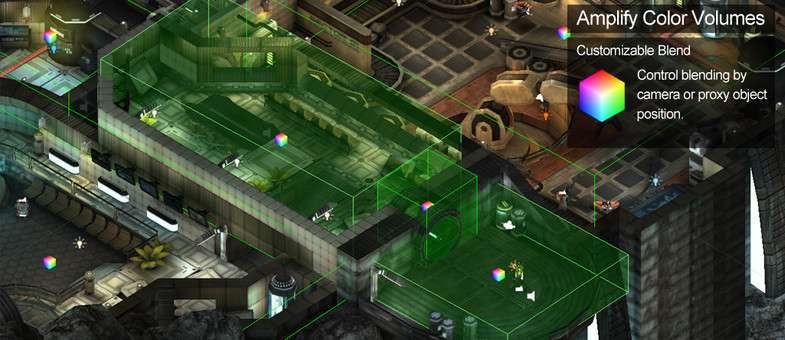
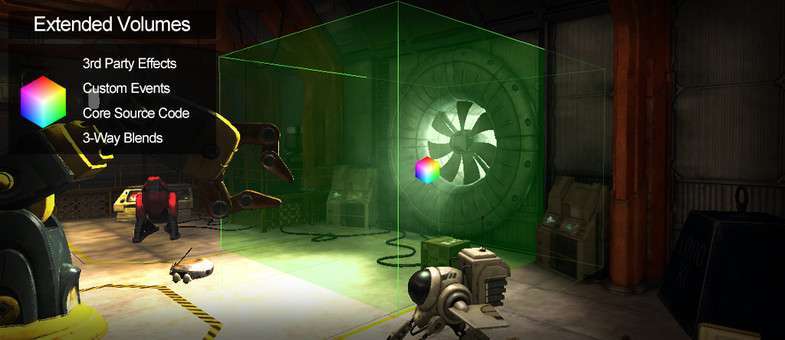
- Volume Blending: Use the
AmplifyColorVolumecomponent to trigger look changes based on player position. Ensure your player controller has a trigger collider to interact with these volumes properly.
Best Use Cases
- Mobile and Low-End Hardware: Because Amplify Color is highly optimized and uses a single-pass LUT application, it is the ideal choice for mobile titles where GPU bandwidth is limited. It provides a visual punch similar to AAA titles without the thermal throttling issues of larger post-processing suites.
- Stylized 2D/3D Hybrid Projects: The ability to use texture-based per-pixel masking makes it perfect for games that need to apply different color profiles to specific screen regions (e.g., a “dark world” mechanic). By using a Render Texture as a mask, you can dynamically reveal color-graded areas based on gameplay events.